Draw React components over video and photos
Video Effects draws a React component of your own over your video or photo, frame by frame, right in your browser. Add the Custom component effect in the editor and write the component as a Remotion composition, with useCurrentFrame(), interpolate(), spring() and <AbsoluteFill> imported from "remotion", or paste one an AI agent wrote: it shows on your file as you type, and the export carries it at full resolution. Your file is never uploaded.
- React and JSX
- Remotion-style
- Live preview
- Full-resolution export
- Nothing uploaded
Your first component
Open the editor and your file
Open the editor, then open a video or photo of yours, or one of the examples.
Add the Custom component effect
Choose Add effect, then Custom component, then Write a component: the code editor opens beside the picture, with a starter that brings in a title.
Change the code
Edit it: it runs about a third of a second after you stop typing, and the picture shows the result. Errors are underlined at their lines, and the picture keeps the last version that ran.
Export
Choose Done, then export the video as MP4 or WebM, or the photo as PNG, JPEG or WebP, at full resolution, from the Export tab.
The smallest useful component fades a word in over the first second:
import { AbsoluteFill, interpolate, useCurrentFrame, useVideoConfig } from "remotion";

export default function Hello() {
  const frame = useCurrentFrame();
  const { fps } = useVideoConfig();
  // Fades in over the first second.
  const opacity = interpolate(frame, [0, fps], [0, 1], { extrapolateRight: "clamp" });
  return (
    <AbsoluteFill style={{ justifyContent: "center", alignItems: "center" }}>
      <h1 style={{ color: "white", fontSize: 120, opacity }}>Hello</h1>
    </AbsoluteFill>
  );
}
The component
Write one file of JavaScript or TypeScript with JSX that exports a React component, the way a Remotion composition is written. For each frame the editor renders it with that frame's number and lays what it draws over the picture: where it draws nothing, the picture shows through, so keep its background transparent.
- Export the component as the default export; if there is none, the last component the file exports by name is drawn, as in
export const MyComposition = () => …. - Import from
"react"and"remotion". The"remotion"module here is this editor's own, made of the hooks and helpers of Remotion's core (below), so most compositions an AI agent writes run as they are; it is also importable as"video-effects". Other packages can't be imported (fonts' names from"@remotion/google-fonts/…"aside, below). - Draw with HTML and CSS, as in a web page (flexbox, gradients, shadows, transforms, filters, text), or with SVG. Style with inline
styleobjects: there is no stylesheet to load, so class names such as Tailwind's do nothing. - The component is also given its frame as props,
{ frame, time, fps, durationInFrames, width, height }, for code that prefers them to the hooks.
What "remotion" offers here
These are the hooks and helpers a component can import. They follow Remotion's names and arguments, so code written for Remotion moves across with its import unchanged; a spring's or an easing's curve may differ a little from Remotion's own.
| Name | What it does |
|---|---|
useCurrentFrame | The number of the frame being drawn, from 0 at the timeline's start (always 0 for a photo). Inside a Sequence it counts from the Sequence's start. |
useVideoConfig | The size the component is laid out at, the video's shape with its shorter side 1080 pixels (1920 × 1080 for a 16:9 video, 1080 × 1920 for a phone's), whatever the video's own resolution, and drawn scaled to the preview and the export; the video's frame rate (30 for a photo); and its length in frames (1 for a photo). |
interpolate | Maps a value from one range to another, piece by piece: interpolate(frame, [0, fps], [0, 1]) fades in over the first second. Past the ends it carries on ("extend", the default), holds the end's value ("clamp") or returns the input ("identity"); easing shapes each piece. |
interpolateColors | Blends CSS colours (hex, rgb(), hsl() or a common colour name) as interpolate blends numbers, held at the ends, and returns an rgba() colour. |
spring | A spring's value at a frame, from from (0) toward to (1), as a weight on a spring moves: mass 1, stiffness 100 and damping 10 by default, so it overshoots a little and settles in about a second. delay holds it at the start for that many frames; durationInFrames stretches or squeezes it to settle then. measureSpring({ fps, config }) gives the frames it takes to settle. |
Easing | Easing curves for interpolate's easing: Easing.out(Easing.cubic) eases into the end (good for an entrance), Easing.in starts slowly (an exit), Easing.inOut both, and Easing.bezier(x1, y1, x2, y2) is CSS's cubic-bezier. |
AbsoluteFill | A div laid over the whole frame (position: absolute, inset 0), a flex column, so layers stack and justifyContent and alignItems place what is in them. |
Sequence | Shows what is in it only from frame from for durationInFrames frames, and within it useCurrentFrame counts from its start, so a part made to start at 0 can be placed anywhere in time (a negative from trims its start). It is an AbsoluteFill unless layout is "none". |
Series | Puts its Series.Sequence parts one after another, each lasting its durationInFrames; an offset moves a part's start from the end of the one before (negative to overlap). |
Loop | Plays what is in it again every durationInFrames frames, times times (for ever by default). |
Freeze | Draws what is in it as at frame n, whatever the frame. |
Img | An image, as <img>: from a data: URL only, as a component loads nothing from the network. Remotion's staticFile() has no folder to read from here. |
random | A number from 0 up to 1 that is the same for the same seed every time, in the preview and the export: random(star-${i}) places a star where it stays. Math.random is seeded by the frame, so a frame draws the same each time while a value from it changes from frame to frame. |
Not here: Video, OffthreadVideo, Html5Video, Audio, Html5Audio (a component draws over the editor's own video, so it plays no video or sound of its own), staticFile() (there is no folder of files: put a small image in as a data: URL), <Composition> and registerRoot() (the component is the composition), and packages such as @remotion/transitions or zod. Code that imports or calls one of them stops with an error that says so. Tailwind's class names do nothing (there is no stylesheet): use inline style objects.
Size, time and frames
- The component is laid out at the video's shape with its shorter side 1080 pixels: 1920 × 1080 for a 16:9 video, 1080 × 1920 for a phone's, 1080 × 1080 for a square one, whatever the file's own resolution.
useVideoConfig()gives thatwidthandheight, so sizes in pixels look the same on a 4K file as on a 720p one, and the same as in a Remotion composition of that size. - What it draws is scaled to the preview's size and the export's, as a picture would be, but drawn at that size, so text stays sharp in a 4K export.
useCurrentFrame()counts frames from the start of the timeline at the video's own frame rate,useVideoConfig().fps, anddurationInFramesis the timeline's length: write a time in seconds asseconds * fpsframes.- A photo is one frame:
useCurrentFrame()is 0,durationInFrames1 andfps30. Draw the finished state there, as the starters do, rather than the first frame of an entrance.
Text, fonts and images
- Nothing is loaded from the network: the component runs in a sandbox with no internet access, which also keeps your file and the page out of its reach.
- Fonts: the computer's own fonts draw, by name (
system-ui,Georgia,Helvetica,monospace);system-uiis the default for HTML, and an<svg>gives its ownfontFamily.loadFont()from"@remotion/google-fonts/Inter"and the like gives the font's name, which draws if the computer has that font, else a system font. - Images: an
<img>or<Img>whosesrcis adata:URL draws; one from a web address doesn't. Keep embedded images small: the code is at most 100,000 characters. - CSS animations and transitions don't run, and neither do timers, effects or state: each frame is drawn from nothing but its number. Move things with
interpolate()andspring()onuseCurrentFrame(). - Safari doesn't let a page draw HTML into a picture it then reads, so there a component must return an
<svg>element, as the Confetti starter does, and the editor says so if it doesn't. Chrome, Edge and Firefox draw HTML and CSS as well.
Where it sits in the effect order
The custom component is one card among the effects, and they apply from top to bottom. By default it comes last, over every other effect, so a title stays crisp over grain, scanlines and letterbox bars. Drag its card by the dots before its name to move it: placed above Film grain, the grain goes over what it draws too, so it sits in the look.
Its Strength slider (the setting customComponent.amount) lays what it draws over the picture at that opacity. Add the Custom component again from Add effect for another, up to 4: Custom component 2 to 4 each have their own code, Strength and place. Agents set them with loadComponent(source, { slot: 2 }) or the tool's slot.
Preview and export
- The same component draws the preview and every export. While a video plays, the preview asks for the next frames ahead, and a component slow to draw may show a frame late; a paused frame, and every frame of an export, is drawn for its own number.
Math.random()is seeded by the frame, so a frame draws the same in the preview and the export;random(seed)gives a value that stays the same from frame to frame.- Videos export as MP4 (H.264) or WebM (VP9) at the source's resolution, keeping the sound where the browser can; photos as PNG, JPEG or WebP.
- Your component stays when you open another file, and Undo and Redo take it back and forth with the rest of the look.
Limits
- At most 100,000 characters.
- A frame may take 2 seconds to draw. One that takes longer, an endless loop say, is stopped and the component paused, so the editor never freezes; fix the code, then run it again.
- No network, storage, cookies or page to reach:
fetch,localStorageand the document aren't there to use. The component is given only the frame's number, time and size, never the video's pictures. - One layer drawn over the picture: a component can't read the video's pixels or move them. For an effect that changes the picture itself, write a custom shader.
- The code stays in your browser: a link or copied settings carry only the component's strength. Save it as a
.tsxfile to keep or share it; the editor also keeps your last text in this browser. (An AI agent connected to your editor over MCP sends the components it writes through this site, which keeps each call only until your editor answers it.)
Errors
The editor runs the code as you type and underlines each error at its line, with the message listed under the code; select one to go to its line. While the code has errors, the picture shows the last version that ran. A frame that fails to draw shows without the component, and the card says which frame.
| The message says | It usually means |
|---|---|
Syntax error: Unexpected token | A missing bracket, brace or quote on that line or the one before it, or JSX that isn't closed. |
x is not defined | A name used before it is declared, misspelt, or not imported: add it to the import from "remotion". |
"Video" isn't available in a component | One of the parts of Remotion this editor doesn't offer, listed above. |
"lodash" can't be imported: … (or isn't available here) | An import of another package: write that part yourself, or ask your AI agent to. |
The code needs to export a React component | Nothing is exported: add export default before the component's function. |
The component took longer than 2 seconds | A loop that never ends, or a very slow one: give every loop a fixed count. |
Port a Remotion composition
A composition that draws with the hooks and helpers above runs as it is: paste it into the editor, or anywhere on the editor page. Otherwise, go through this list:
- Take the composition's component, with the components it uses, in one file. Its
<Composition>registration andRoot.tsxaren't needed: the editor draws the exported component over every frame. - Make its background transparent: an
<AbsoluteFill style={{ backgroundColor: "white" }}>would cover your video. - Replace
<OffthreadVideo>,<Video>and<Audio>with nothing: your file is the video. Put images in asdata:URLs rather thanstaticFile(). - Turn Tailwind classes into inline
styleobjects. - Sizes stay as they are when the composition was 1920 × 1080 and your video is 16:9; otherwise base them on
useVideoConfig()'swidthandheight.
Example components
Each of these is a starter in the editor's Starters menu: pick it there, or copy it from here.
Title
A title and a line under it that rise and fade in, hold, and fade out at the end.
// A title that rises and fades in, holds, then fades out at the end.
// The component is laid out at the video's shape with its shorter side
// 1080 pixels, so sizes in pixels look the same on any video, and its
// background stays transparent: the video shows wherever it draws nothing.
import { AbsoluteFill, Easing, interpolate, useCurrentFrame, useVideoConfig } from "remotion";

const TITLE = "Your title here";
const SUBTITLE = "A line under it";

export default function Title() {
  const frame = useCurrentFrame();
  const { fps, durationInFrames } = useVideoConfig();
  // A photo is one frame: show the title as it ends up.
  const still = durationInFrames <= 1;
  // In over the first second, out over the last half second, gone by the last frame.
  const enter = still
    ? 1
    : interpolate(frame, [0, fps], [0, 1], {
        easing: Easing.bezier(0.16, 1, 0.3, 1),
        extrapolateLeft: "clamp",
        extrapolateRight: "clamp",
      });
  const exit = still
    ? 0
    : interpolate(frame, [durationInFrames - 1 - fps / 2, durationInFrames - 1], [0, 1], {
        extrapolateLeft: "clamp",
        extrapolateRight: "clamp",
      });
  return (
    <AbsoluteFill style={{ justifyContent: "center", alignItems: "center", textAlign: "center" }}>
      <div style={{ opacity: enter * (1 - exit), transform: `translateY(${(1 - enter) * 40}px)` }}>
        <h1
          style={{
            margin: 0,
            fontSize: 120,
            fontWeight: 700,
            letterSpacing: -2,
            color: "white",
            textShadow: "0 4px 24px rgba(0, 0, 0, 0.5)",
          }}
        >
          {TITLE}
        </h1>
        <p style={{ margin: "16px 0 0", fontSize: 44, color: "rgba(255, 255, 255, 0.85)", textShadow: "0 2px 12px rgba(0, 0, 0, 0.5)" }}>
          {SUBTITLE}
        </p>
      </div>
    </AbsoluteFill>
  );
}
Lower third
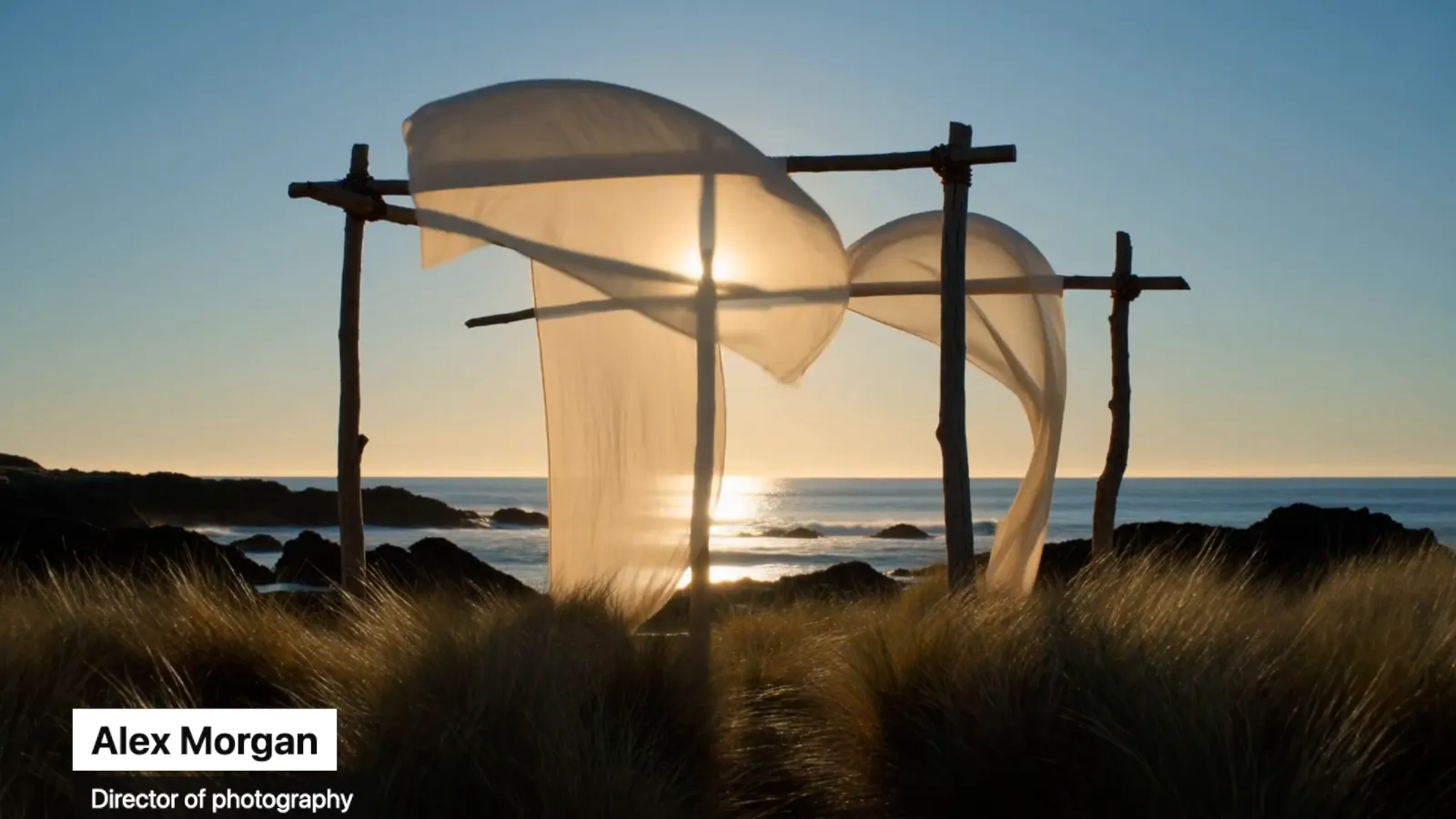
A name and a role that spring in at the lower left and slide away before the end.
// A lower third: a name and a role that spring in at the lower left half
// a second in, and slide away a second before the end.
import { AbsoluteFill, Easing, interpolate, spring, useCurrentFrame, useVideoConfig } from "remotion";

const NAME = "Alex Morgan";
const ROLE = "Director of photography";

export default function LowerThird() {
  const frame = useCurrentFrame();
  const { fps, durationInFrames } = useVideoConfig();
  const still = durationInFrames <= 1;
  // A spring with a high damping glides in without a bounce.
  const slideIn = still ? 1 : spring({ frame, fps, delay: fps / 2, config: { damping: 200 } });
  const slideOut = still
    ? 0
    : interpolate(frame, [durationInFrames - fps, durationInFrames - fps / 2], [0, 1], {
        easing: Easing.in(Easing.cubic),
        extrapolateLeft: "clamp",
        extrapolateRight: "clamp",
      });
  const shown = slideIn - slideOut;
  return (
    <AbsoluteFill style={{ justifyContent: "flex-end", padding: "0 0 96px 96px" }}>
      <div
        style={{
          display: "flex",
          flexDirection: "column",
          alignItems: "flex-start",
          gap: 8,
          opacity: shown,
          transform: `translateX(${(shown - 1) * 60}px)`,
        }}
      >
        <div style={{ background: "white", color: "#0a0a0a", fontSize: 52, fontWeight: 700, padding: "10px 24px" }}>{NAME}</div>
        <div style={{ background: "rgba(10, 10, 10, 0.75)", color: "white", fontSize: 34, padding: "8px 24px" }}>{ROLE}</div>
      </div>
    </AbsoluteFill>
  );
}
Captions
Captions from a list of lines, each shown from its start to its end, in a box at the bottom.
// Captions: each line shows from its start to its end, in seconds, in a
// box at the bottom. Change the times and the words to fit your video.
import { AbsoluteFill, useCurrentFrame, useVideoConfig } from "remotion";

const CAPTIONS = [
  { from: 0, to: 2, text: "Captions go here, a line at a time." },
  { from: 2, to: 4, text: "Each one shows from its start to its end." },
  { from: 4, to: 6, text: "Change the times and the words to fit your video." },
];

export default function Captions() {
  const frame = useCurrentFrame();
  const { fps } = useVideoConfig();
  const seconds = frame / fps;
  const caption = CAPTIONS.find((line) => seconds >= line.from && seconds < line.to);
  if (!caption) return null;
  return (
    <AbsoluteFill style={{ justifyContent: "flex-end", alignItems: "center", paddingBottom: 80 }}>
      <div
        style={{
          maxWidth: "80%",
          padding: "12px 28px",
          borderRadius: 12,
          background: "rgba(0, 0, 0, 0.6)",
          color: "white",
          fontSize: 48,
          lineHeight: 1.3,
          textAlign: "center",
        }}
      >
        {caption.text}
      </div>
    </AbsoluteFill>
  );
}
Progress bar
A thin bar along the bottom that fills as the video plays.
// A progress bar along the bottom that fills as the video plays.
import { AbsoluteFill, useCurrentFrame, useVideoConfig } from "remotion";

const COLOUR = "#ff3b30";
const THICKNESS = 12;

export default function ProgressBar() {
  const frame = useCurrentFrame();
  const { durationInFrames } = useVideoConfig();
  const progress = durationInFrames > 1 ? frame / (durationInFrames - 1) : 1;
  return (
    <AbsoluteFill>
      <div style={{ position: "absolute", left: 0, right: 0, bottom: 0, height: THICKNESS, background: "rgba(255, 255, 255, 0.25)" }}>
        <div style={{ width: `${progress * 100}%`, height: "100%", background: COLOUR }} />
      </div>
    </AbsoluteFill>
  );
}
Timecode
The frame's timecode, hours to frames, in the top right corner.
// The frame's timecode (hours:minutes:seconds:frames) in the top right corner.
import { AbsoluteFill, useCurrentFrame, useVideoConfig } from "remotion";

const pad = (value: number) => String(value).padStart(2, "0");

export default function Timecode() {
  const frame = useCurrentFrame();
  const { fps } = useVideoConfig();
  const rate = Math.round(fps);
  const seconds = Math.floor(frame / rate);
  const text = [Math.floor(seconds / 3600), Math.floor(seconds / 60) % 60, seconds % 60, frame % rate].map(pad).join(":");
  return (
    <AbsoluteFill style={{ justifyContent: "flex-start", alignItems: "flex-end", padding: 48 }}>
      <div
        style={{
          padding: "6px 16px",
          borderRadius: 8,
          background: "rgba(0, 0, 0, 0.55)",
          color: "white",
          fontFamily: "ui-monospace, Menlo, Consolas, monospace",
          fontSize: 40,
        }}
      >
        {text}
      </div>
    </AbsoluteFill>
  );
}
Confetti
Confetti falling and turning, drawn as SVG, the same on every playback.
// Confetti falling and turning, drawn as SVG. random(seed) places each
// piece where it stays from frame to frame, in the preview and the export.
// An <svg> as the component's root draws in every browser, Safari too.
import { random, useCurrentFrame, useVideoConfig } from "remotion";

const COLOURS = ["#ff4d6d", "#ffd166", "#06d6a0", "#4cc9f0", "#f72585"];
const PIECES = 80;

export default function Confetti() {
  const frame = useCurrentFrame();
  const { width, height, fps } = useVideoConfig();
  const seconds = frame / fps;
  return (
    <svg width={width} height={height} viewBox={`0 0 ${width} ${height}`}>
      {Array.from({ length: PIECES }, (_, i) => {
        // Pixels a second, and where each piece starts.
        const speed = 120 + random(`speed-${i}`) * 220;
        const x = random(`x-${i}`) * width + Math.sin(seconds * 2 + i) * 30;
        const y = ((random(`y-${i}`) * (height + 100) + seconds * speed) % (height + 100)) - 50;
        const angle = seconds * (90 + random(`spin-${i}`) * 270) + i * 40;
        return (
          <rect
            key={i}
            x={-8}
            y={-4}
            width={16}
            height={8}
            fill={COLOURS[i % COLOURS.length]}
            transform={`translate(${x} ${y}) rotate(${angle})`}
          />
        );
      })}
    </svg>
  );
}
Write one with an AI agent
Claude, ChatGPT and other AI agents write Remotion compositions well, and this editor runs the format they write. Copy this prompt, paste it into your agent and describe what you want drawn after it, then paste the agent's reply anywhere on the editor page: the component loads, its code fence taken off. In the editor, Copy prompt for your AI agent adds your current code and its errors, so the agent can change or fix it.
Write a custom component for Video Effects (https://video-effects.jingfu.design/editor), a free in-browser video editor: a React component, written as a Remotion composition, that is drawn over my video for each frame. Full reference: https://video-effects.jingfu.design/docs/components
- One file of TypeScript or JavaScript with JSX that exports the component (export default).
- Import only from "react" and "remotion", whose hooks and helpers this editor implements: useCurrentFrame, useVideoConfig, interpolate, interpolateColors, spring, Easing, AbsoluteFill, Sequence, Series, Loop, Freeze, Img, random. Nothing else: no Video, Audio, staticFile, other packages or Tailwind.
- Keep the background transparent: my video shows wherever the component draws nothing.
- It is laid out at the video's shape with its shorter side 1080 pixels (1920 × 1080 for 16:9, 1080 × 1920 for vertical video): useVideoConfig() gives width, height, fps and durationInFrames.
- Drive every change from useCurrentFrame() with interpolate or spring: CSS animations and transitions, timers, effects and state never run. Use random(seed) for anything random.
- Style with inline style objects. Fonts: system fonts (system-ui, Georgia, monospace), or a Google Font's loadFont() from "@remotion/google-fonts/<Font>", drawn if the computer has it. Images only as data: URLs: nothing loads from the network.
- For a photo, useCurrentFrame() is 0 and durationInFrames 1: show the finished state there.
Reply with the component alone, in one tsx code block.

What I want drawn over my video: Scripts and AI agents that drive the page set a component themselves, with window.videoEffects.loadComponent() or the WebMCP and MCP tool video_effects_load_component: see the guide for agents.
Questions
- Can I use Remotion in the browser without installing anything?
- Video Effects runs compositions written in Remotion's style in your browser with nothing to install: its own implementation of Remotion's core hooks and helpers draws your component over your video or photo, and exports the result. It isn't the Remotion library, so video, audio and other packages aren't available.
- How do I add an animated title or captions to a video with code?
- Open the editor, open your video, add the Custom component effect and write the title as a React component, or pick the Title or Captions starter and change its words. Animate it with interpolate() on useCurrentFrame(), then export from the Export tab at the video's full resolution.
- Will a Remotion composition work as it is?
- Often. A composition that draws with useCurrentFrame, useVideoConfig, interpolate, spring, Easing, AbsoluteFill, Sequence and the other helpers this page lists runs unchanged once its background is transparent. Video, audio, staticFile, other packages and Tailwind aren't available; the porting list on this page says what to change.
- Can ChatGPT or Claude write the component for my video?
- Yes. Copy the prompt on this page or in the editor, add what you want drawn, and paste the agent's reply anywhere on the editor page. The prompt asks for a Remotion composition with what this editor offers, and the editor's copy adds your code and its errors so the agent can fix them.
- Is my video uploaded?
- No. Your video and its export stay on your device, and the component runs in a sandbox in your browser that has no internet access and is given only each frame's number, time and size, never your video.
- Why does my component look different in the export?
- Usually it doesn't: the component is laid out at the same size for the preview and the export and only drawn sharper in the export. A component that reads the clock or keeps state between frames can differ; draw everything from useCurrentFrame() and random(seed), and every frame matches.
- Why doesn't my CSS animation play?
- Each frame is drawn from its number alone, so CSS animations, transitions, timers and effects never run. Work out each frame's values with interpolate() or spring() from useCurrentFrame() instead.
- Can a component change the video's pixels?
- No: it draws a layer over the picture. To change the picture itself, a colour or a distortion, write a custom shader in GLSL, the editor's other effect of your own.