Video Effects
Film looks for your videos and photos, made right in your browser: free, with nothing to install.
- Free
- No upload
- No account needed
- No watermark
- MP4, WebM, PNG, JPEG, WebP
What you can do
Add effects
Start from a preset or build a look of your own from effects such as film grain, halation, rain and glitch, in the order you choose.
Edit on a timeline
Trim, split and reorder clips, give each clip a look of its own, and export them as one video.
A toolbox for agents
AI agents and scripts can use it too: settings in a link or as JSON, a JavaScript API, and WebMCP tools where the browser offers them.
Your files stay with you
Everything happens on your device. Your files are never uploaded, so nothing can leak.
Why I’m building Video Effects
As a content creator, most of the editing I need is straightforward. But many editors bundle in features I rarely use, making simple tasks more complicated and the software more expensive.
I’m building Video Effects around three principles: simple tools, privacy for your media, and paying only for what you need. Your videos and photos are processed on your own device and never uploaded.
How to add effects to a video or photo
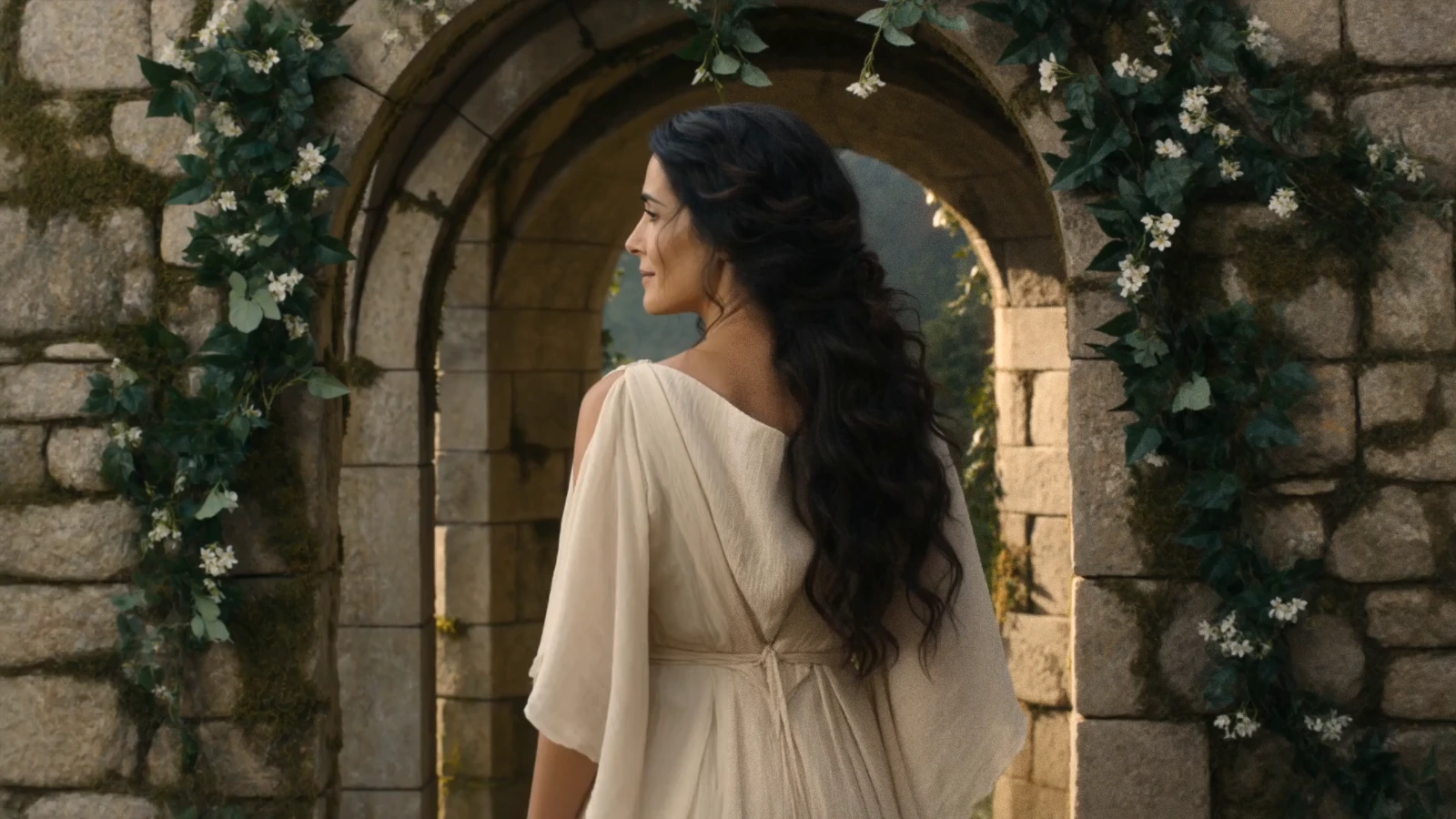
- Open a video or photo: choose a file with the Open button at the top of the settings, drop it on the page or paste it. Once a file is open, the Open and Examples buttons give way: a photo shows its card, which you click to open another file instead, and a video its clips on the timeline, another file opening from the clip menu (the … button beside the clock) or with O. While no file is open, the empty preview and the Examples button also offer examples (three short clips and a photo, generated with Seedance 2.0 on YouArt for this page); the page usually opens with the first of them already playing, and while an example is open, hovering over the picture offers the other example clips and a button that opens a file of your own.
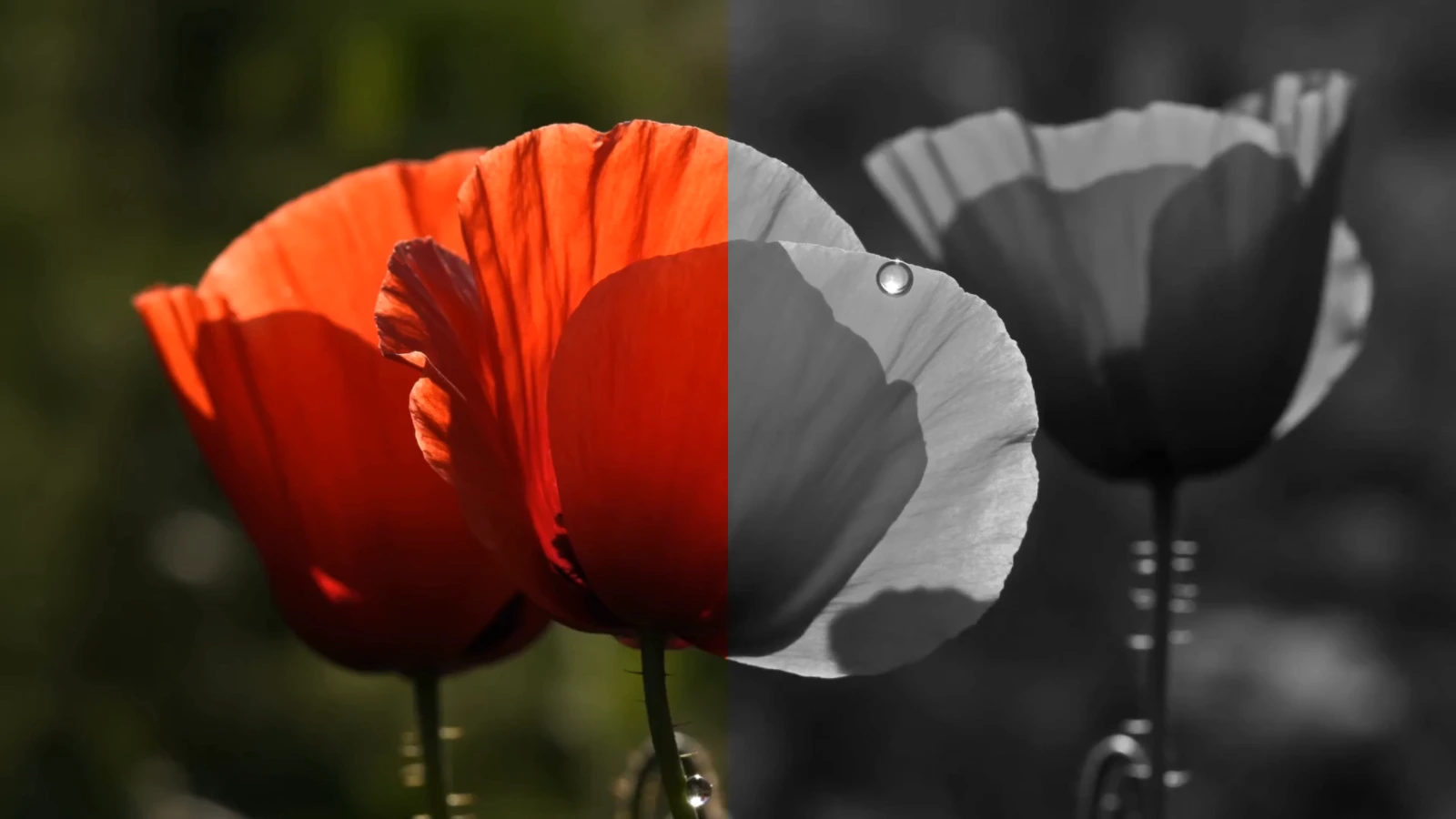
- Pick a preset in the Presets tab (each thumbnail shows the frame with that look), or add effects one at a time in the Effects tab with its Add effect button, from light and colour, LUT, detail, glow, lens, vignette, stylise, film grain and transform. Each effect is a card of sliders with a switch that turns it off and on, its own Reset and a button that removes it; they apply from top to bottom, and a card dragged by the dots before its name moves its effect earlier or later. To lay a colour look of your own over the picture, add the LUT effect and load a .cube file, or drop one anywhere on the page. To move through a video or compare the result with the original, unfold the bar under the preview with the arrow at its right end: click or drag along the timeline, or turn on Compare (or press C) and drag the split line, the original on one side of it and the result on the other. There a video is a timeline of clips: drag a clip's edge to trim it, drag a clip to move it, add videos with the + at the timeline's end, and split, trim or delete clips from the clip menu or with S, [, ] and Delete. Each clip has a look of its own: the settings are those of the clip under the playhead. After a click in the studio, or with the keyboard focus in it, Space plays or pauses a video.
- Export, in the Export tab. A video saves as MP4 or WebM and a photo as PNG, JPEG or WebP, at the source's full resolution, to your downloads folder. The same tab copies a link or settings that carry the look, never the file.
The effects
- Light and colour. Exposure, contrast, saturation, vibrance and white balance, a fade that lifts the blacks like an old print, black and white, or its negative, and colour wheels that tint the shadows, midtones and highlights apart.
- LUT. A colour look of your own from a LUT file (.cube), the kind colourists and LUT packs share, laid over your grade at the strength you choose.
- Detail. Sharpening that brings out edges and fine texture, or a soft blur, even across the frame or growing from sharp to soft.
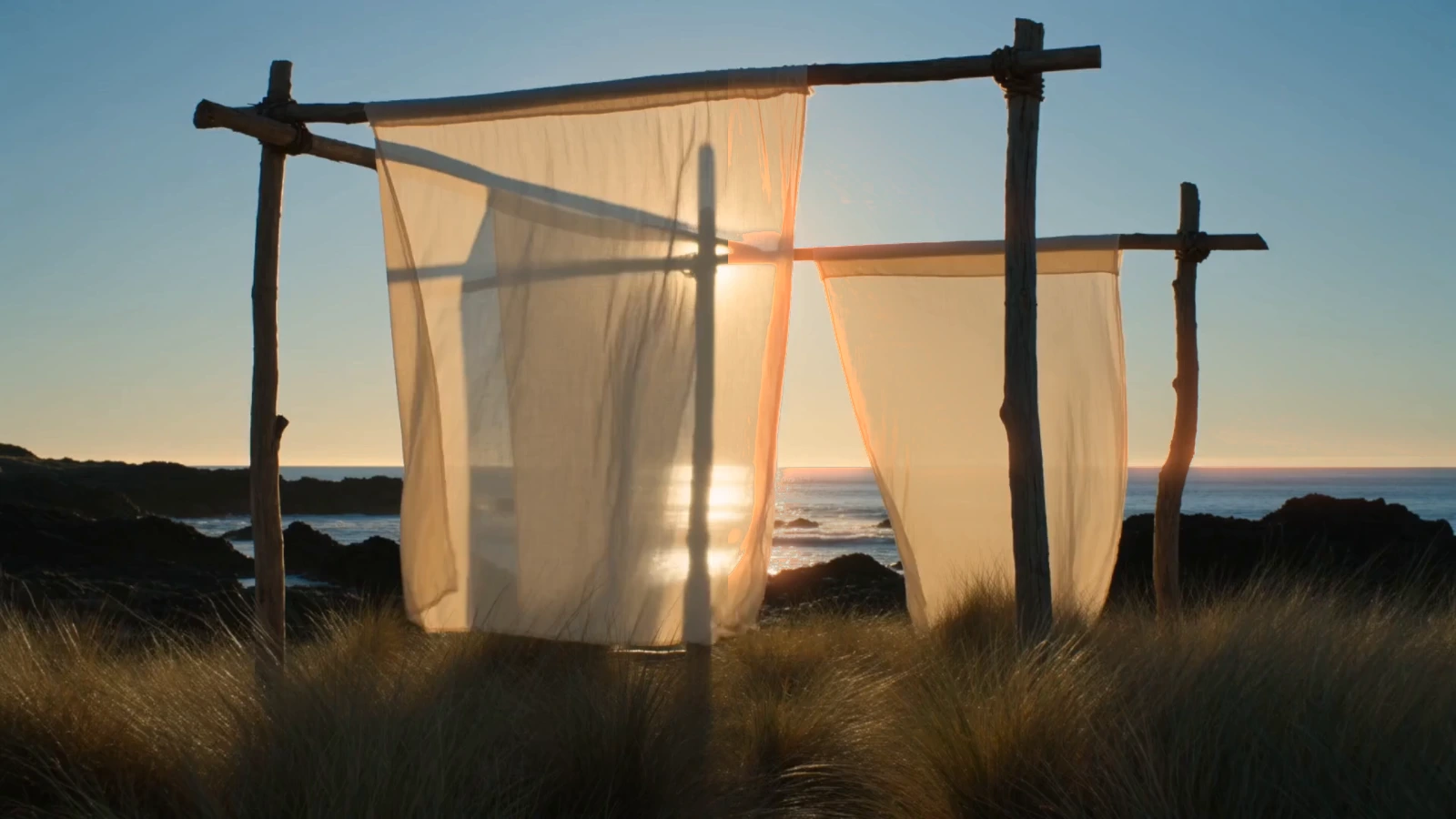
- Glow. Bloom, a soft glow that spreads from the brightest parts of the frame as strong light does in a lens or the eye, and halation, the red-orange halo film shows round bright highlights.
- Lens. The flaws of a simple lens and the glass in front of it: barrel or pincushion distortion, which bends straight lines, colour fringes toward the edges, and rain running down the glass.
- Vignette. Darkens the frame toward its corners, as many lenses do, which draws the eye to the middle.
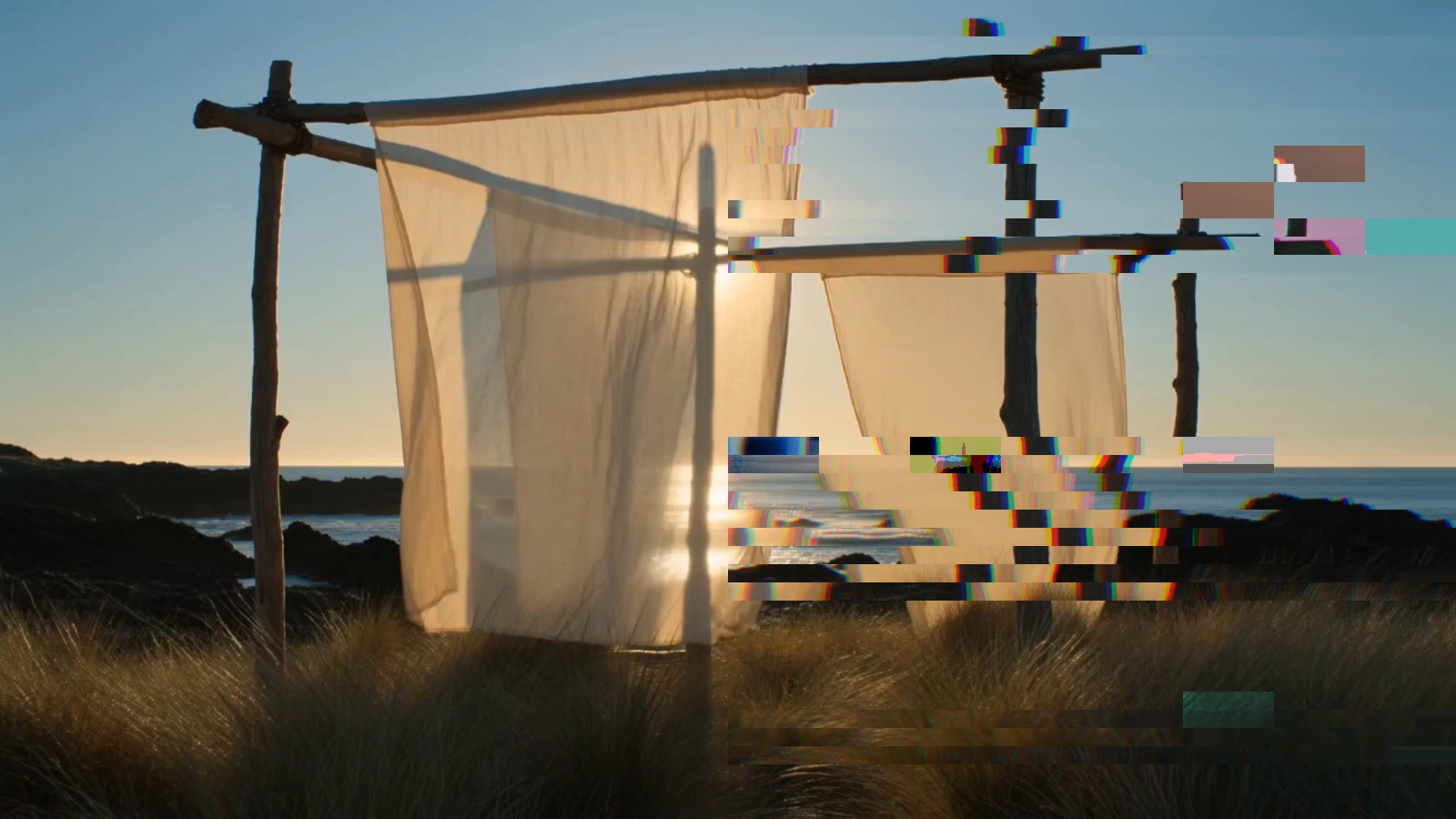
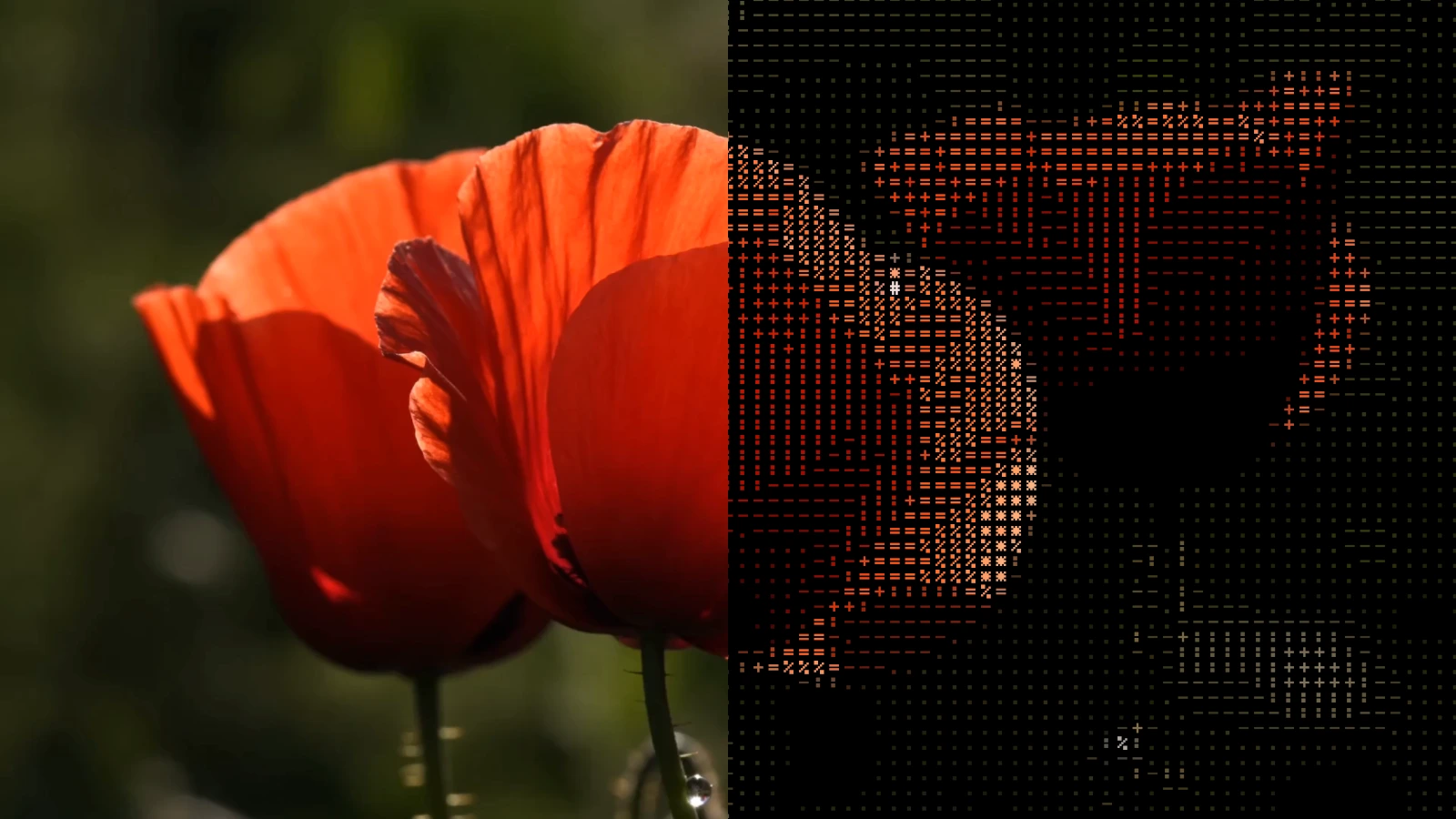
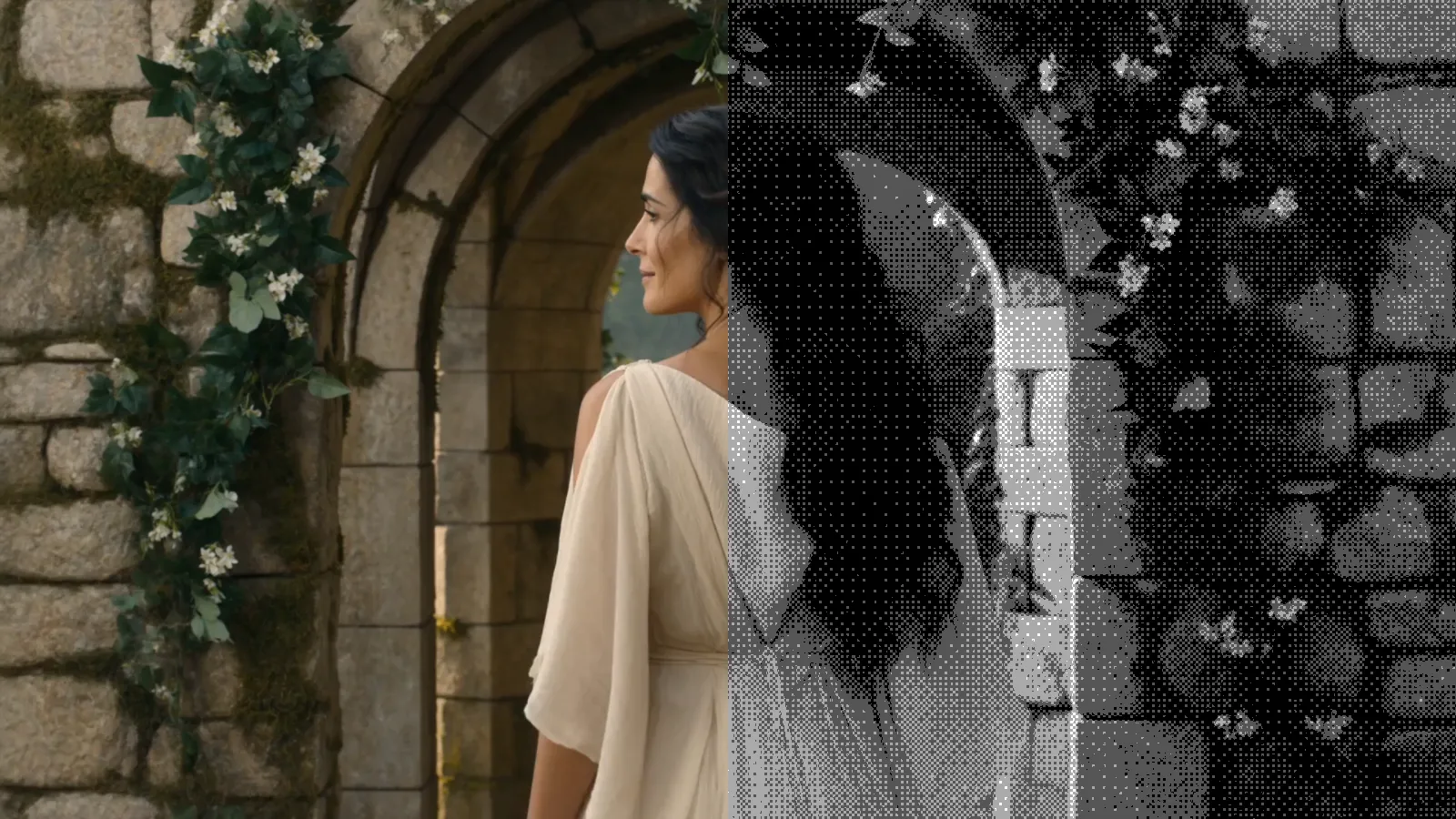
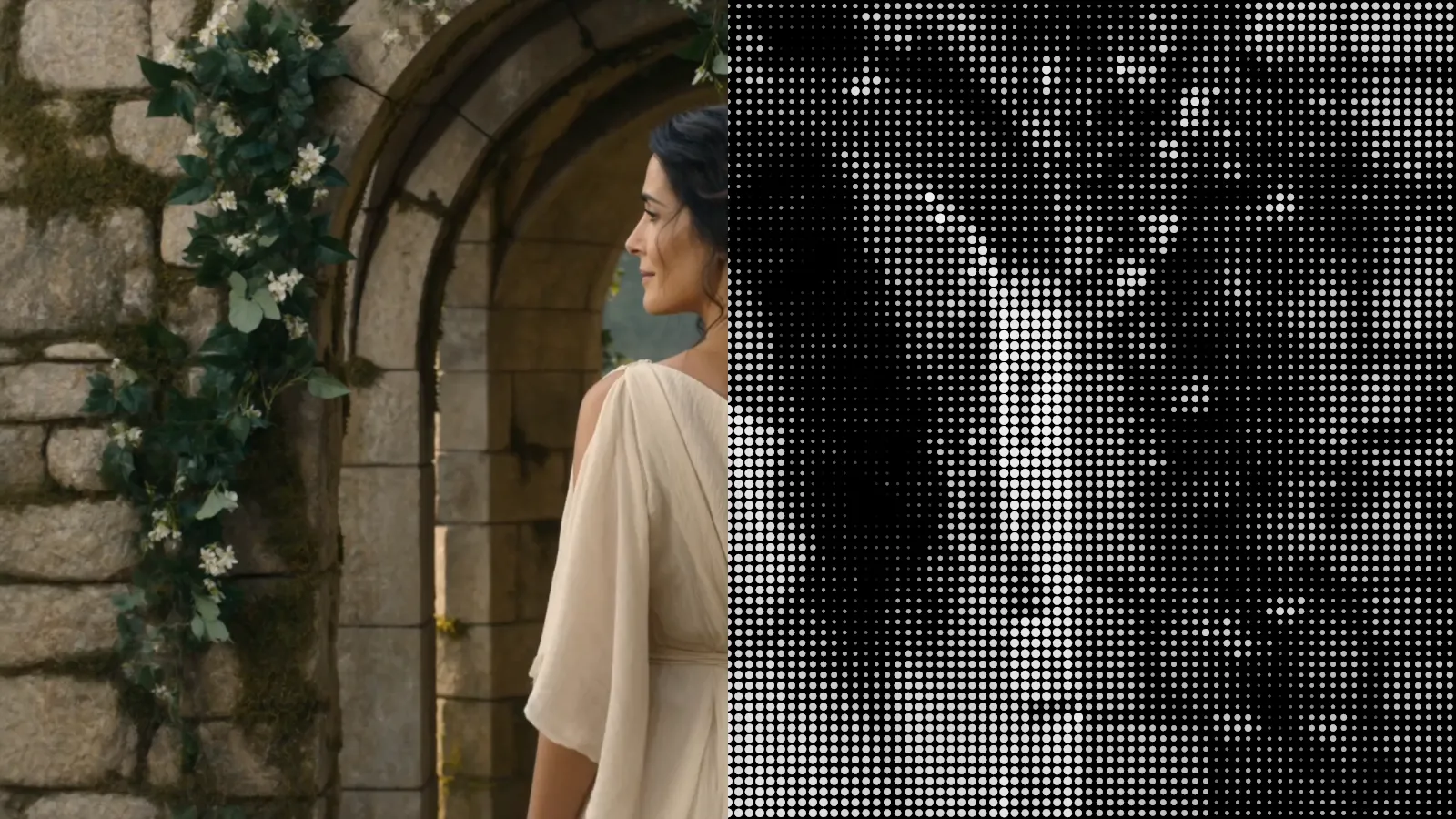
- Stylise. Looks borrowed from old screens, the cinema and digital art: red and blue knocked out of line like a worn videotape, the scanlines of a CRT screen, black letterbox bars, big square pixels, a grid of dots or tiles, ASCII characters, digital glitches and dithering to a few tones.
- Film grain. Film-like grain, strongest in the midtones. It is seeded by the frame, so a paused frame holds still and the export matches the preview.
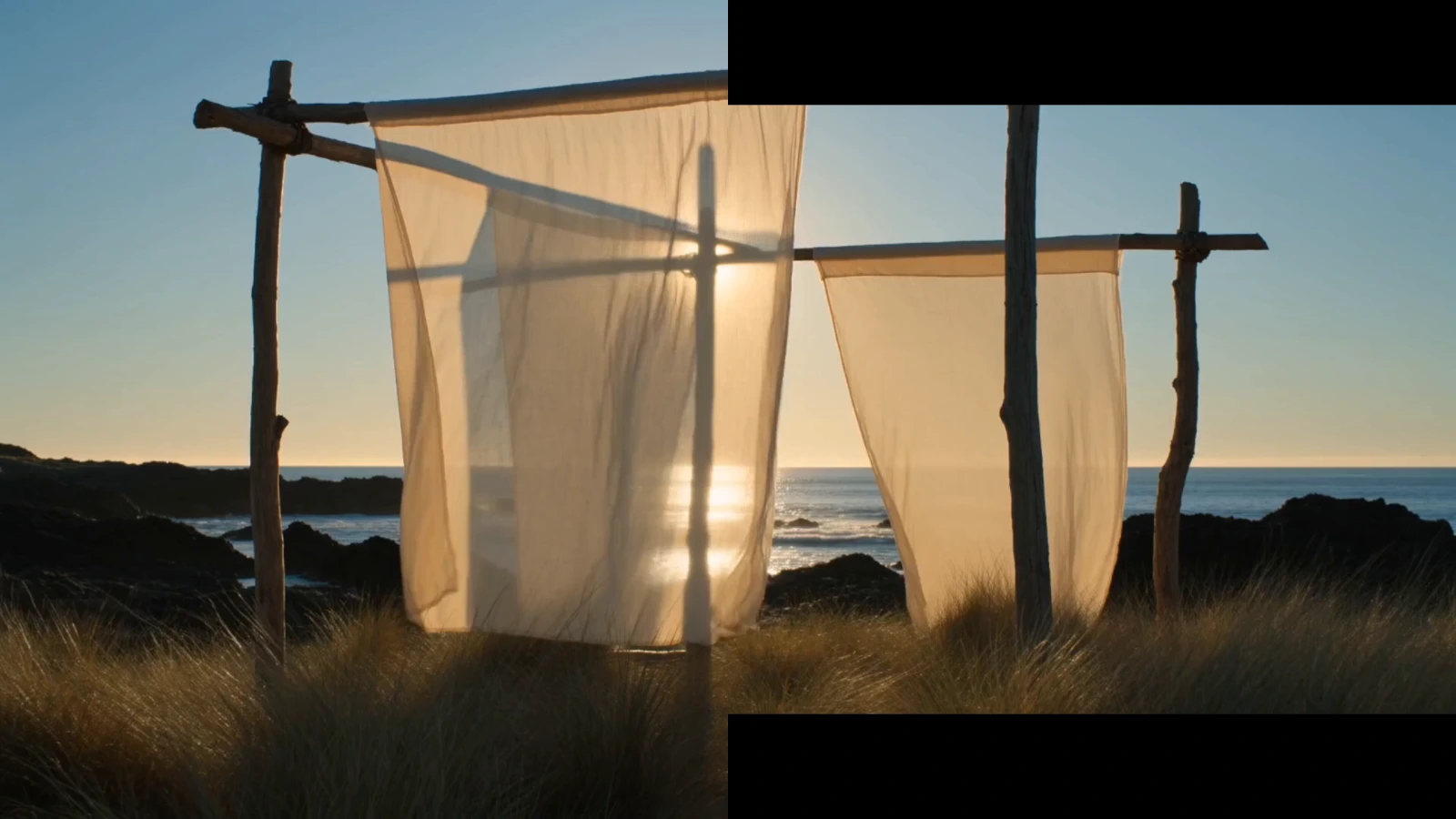
- Transform. Not a look but where the picture sits: moved, scaled or turned in the frame, black where it leaves it, and how much of it shows over black.
Your files stay on your device
Everything happens right on your device, in your browser. Your videos and photos are opened, edited and saved there, and never sent anywhere.
Because nothing is uploaded, your files are safe: nothing can leak, and no one else, not even us, ever sees them. You don't need an account: one holds only your email address and the AI agents you let in, and signing in keeps a single cookie. An agent's instructions to your editor pass through our server and are deleted as soon as the editor has carried them out; your files never do. Without cookies, the site counts visits and a few choices, such as a preset or effect you pick and the format you export to, but never which files you open or anything in them.
Exports leave out hidden details such as where a video was recorded, and a shared link carries only your settings, never your file.
Supported files and browsers
Opens MP4, MOV, WebM and MKV videos and JPEG, PNG, WebP and AVIF photos, and exports MP4 or WebM, or PNG, JPEG or WebP, at full resolution, keeping the original sound where the browser can. Works in current Chrome and Edge on a computer or Android, in current Firefox on a computer and in Safari 26 or later; HDR video is converted to standard range.
Questions
No. Everything happens right on your device: your file is opened, edited and saved there and never leaves your device, so no one else can see it.
AI agents and scripts can use the tool too, as a step in their own pipelines; everything they need is in the guide for them: /index.md
Start editing
Everything happens on your device. Your files are never uploaded, so nothing can leak.
Open the editor