Add film grain to video and photos
Set the grain with the sliders and compare it with the original, then open your own video or photo and export it at full resolution. It runs in your browser: your file is never uploaded.
- Free
- No upload
- No account needed
- No watermark
- MP4, WebM, PNG, JPEG, WebP
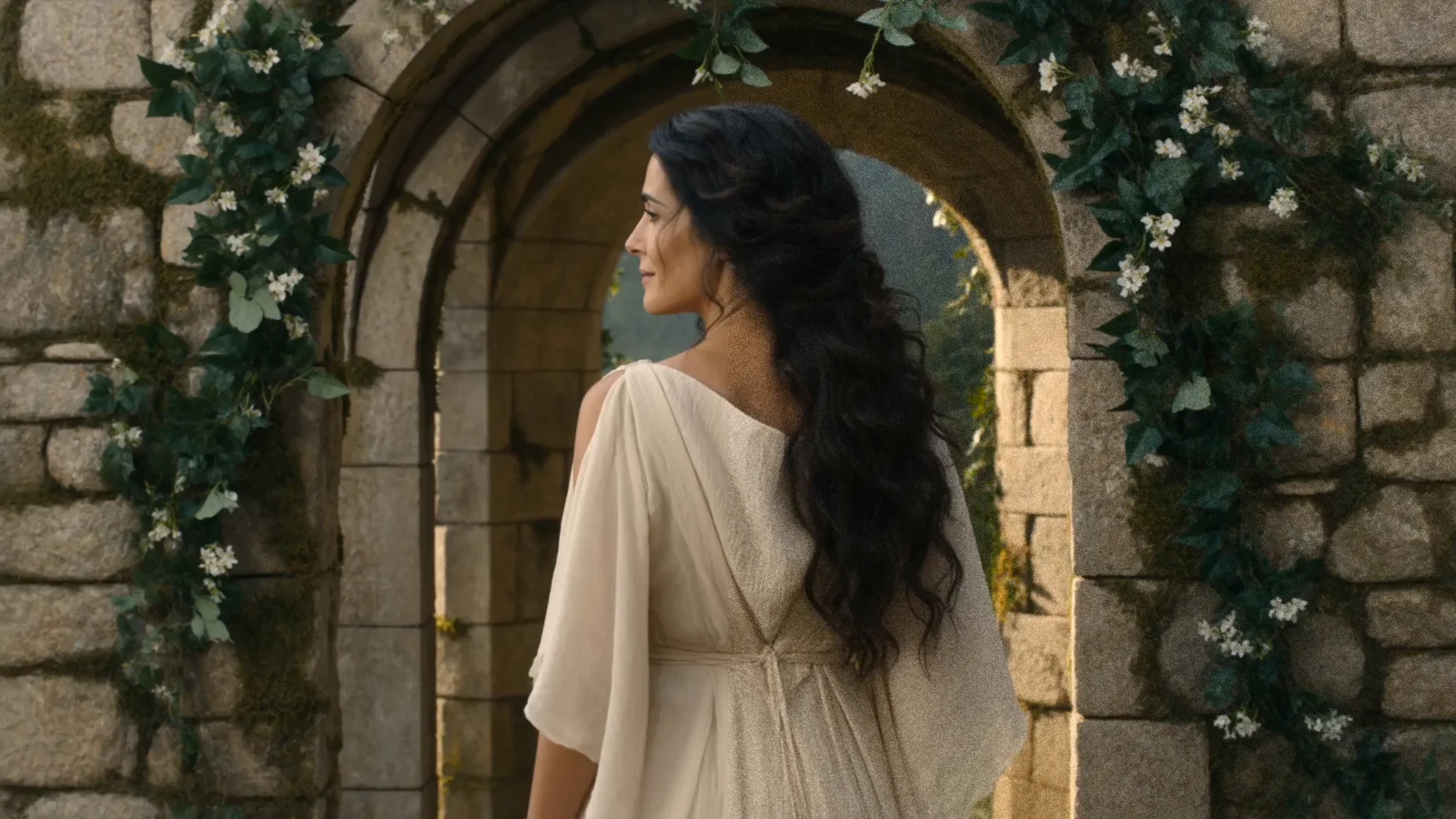
Film grain
How to add film grain to a video online
Open your video or photo
Choose Open your own file: the editor opens with the effect, ready for your file (videos as MP4, MOV, M4V, WebM, MKV; photos as JPEG, PNG, WebP, AVIF). It opens in your browser, and nothing is uploaded.
Set the grain and compare
Amount sets how strong the grain is and Size how coarse. Compare shows the original beside the result; play a video to see the grain move.
Export it
In the editor, export the video as MP4 or WebM, or the photo as PNG, JPEG or WebP, at its full resolution, with no watermark.
Amount, Size and Seed
Amount sets how strong the film grain is, from none at 0 to heavy at 100. The grain is strongest in the midtones and fades out toward pure black and pure white, as film's does, so deep shadows stay deep and highlights stay clean.
Size sets how coarse it is, from 0.5 to 3 pixels on a 1080p frame, scaled with the resolution: a 4K export has the same grain as the small preview, and a vertical video the same as a landscape one.
Seed picks the grain's pattern: New seed gives a different one with the same look, and the same seed and frame always give the same grain.
Film grain that moves like film
On video, every frame gets grain of its own, worked out from the frame's time and the seed. The grain moves as the video plays, as real film grain does, yet a paused frame holds still and the export matches the preview frame for frame. It is drawn into your video, not laid over it from a looped overlay clip.
The grain changes each pixel's brightness by the same amount in red, green and blue, so it adds texture without colour speckle.
Keeping the grain when you export and share
Video encoders smooth fine grain away to save space, so whenever grain shows, the video is encoded at a high bitrate to keep it. That makes files large: ten seconds of 1080p video come to about 110 MB as MP4.
Sites you post to encode your video again at a lower bitrate, which softens grain, so a little more grain than looks right in the preview tends to come through better.
Your files stay on your device
Everything happens right on your device, in your browser. Your videos and photos are opened, edited and saved there, and never sent anywhere.
Because nothing is uploaded, your files are safe: nothing can leak, and no one else, not even us, ever sees them. You don't need an account: one holds only your email address and the AI agents you let in, and signing in keeps a single cookie. An agent's instructions to your editor pass through our server and are deleted as soon as the editor has carried them out; your files never do. Without cookies, the site counts visits and a few choices, such as a preset or effect you pick and the format you export to, but never which files you open or anything in them.
Exports leave out hidden details such as where a video was recorded, and a shared link carries only your settings, never your file.
Files and browsers
Opens MP4, MOV, WebM and MKV videos and JPEG, PNG, WebP and AVIF photos, and exports MP4 or WebM, or PNG, JPEG or WebP, at full resolution, keeping the original sound where the browser can. Works in current Chrome and Edge on a computer or Android, in current Firefox on a computer and in Safari 26 or later; HDR video is converted to standard range.
Film looks with grain
In the editor, grain sits beside halation, bloom, a vignette, a fade and your own LUT, and these presets build on it. Each opens the editor with its look:
- Warm filmA warm colour-negative look: muted colour, a little halation, grain and a light vignette.
- Night filmTungsten film at night: cool, contrasty, with strong red halos and bloom round the lights.
- Black and whiteMonochrome with firmer contrast, grain and a light vignette.
- FadedLow contrast and muted colour, slightly lifted, with fine grain.
- Retro VHSA worn videotape on an old TV: red and blue knocked out of line, a soft picture with haloed edges, boosted but faded colour, scanlines and grain.
- CinematicWidescreen cinema: 2.39:1 letterbox bars on a 16:9 frame, firmer contrast, a touch of warmth, a light vignette, fine grain and a little sharpening.
Questions about adding film grain
More effects to try
- HalationAdd a film halation effect, the red-orange glow round bright highlights, to video or photos in your browser. Export at full resolution. Free, no upload.
- Black and whiteMake a video or photo black and white in your browser, all the way or part way, or as a negative. Export MP4, WebM, PNG or JPEG at full size. Free, no upload.
- GlitchAdd a glitch effect to a video or photo in your browser: bands torn sideways, colours split, blocks broken. Export at full resolution. Free, no upload.
- ASCIITurn a video or photo into ASCII art in your browser: characters in white or colour, over the picture or on black. Export at full resolution. Free, no upload.
- DitherAdd a dither effect to video or photos in your browser: ordered or noise dots, black and white or colour, 2 to 16 levels. Export at full size. Free, no upload.
- LetterboxAdd cinematic black bars to a video or photo in your browser: a letterbox for 1.85:1, 2.39:1 or up to 2.76:1. Export at full resolution. Free, no upload.
- HalftoneAdd a halftone effect to video or photos in your browser: dots that grow with the light, or mosaic tiles. Export at full resolution. Free, no upload.
- ScanlinesAdd CRT scanlines, the dark horizontal lines of an old TV screen, to a video or photo in your browser. Export at full resolution. Free, no upload.
- Rain on glassPut a video or photo behind a rainy window: drops that bend the picture, run down the glass and clear trails through the mist. Free, no upload.
- Chromatic aberrationAdd chromatic aberration to a video or photo in your browser: red and blue lens fringes that grow toward the edges. Export at full resolution. Free, no upload.
- RGB splitAdd an RGB split to a video or photo in your browser: red and blue shifted apart, like a worn videotape. Export at full resolution. Free, no upload.
- VignetteAdd a vignette effect to a video or photo in your browser: darker corners in an ellipse, a circle or the frame's rectangle. Full resolution. Free, no upload.
- BloomAdd a bloom effect, the soft glow that spreads from the brightest parts of the frame, to video or photos in your browser. Free, no upload, full resolution.
- FisheyeAdd a fisheye look to a video or photo with barrel lens distortion, in your browser. No black corners. Export at full resolution. Free, no upload.